Preview Kitchen Cabinet Colors and Materials With AI
See a real paint, wood, stone, or laminate reference on your own cabinets before ordering samples or committing to a renovation.
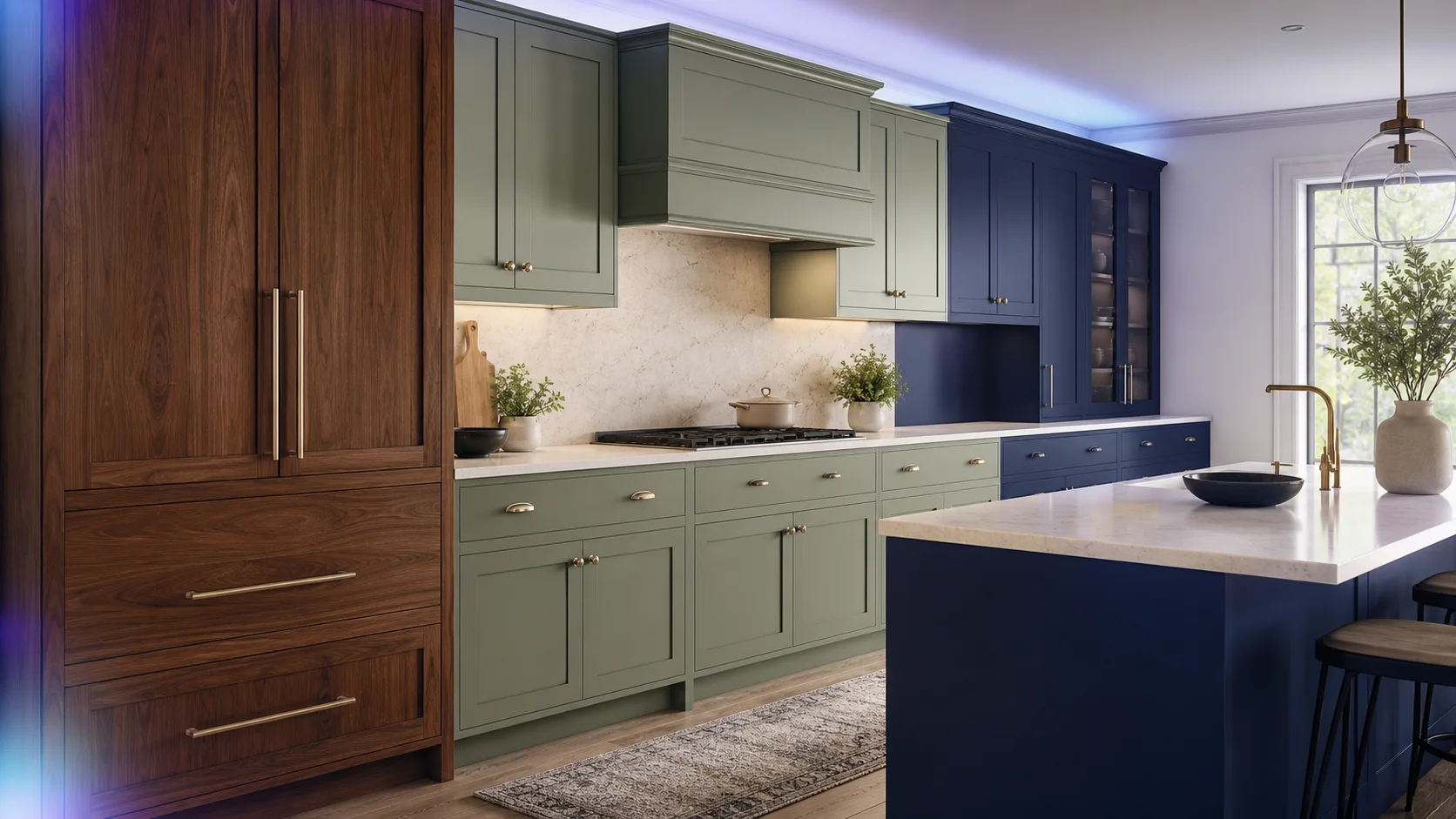
Preview Kitchen Cabinet Colors and Materials With AI
Cabinet finishes are hard to judge from a tiny sample. The same sage paint, walnut veneer, or matte laminate can look completely different once it covers an entire kitchen and sits beside your counters, backsplash, hardware, and daylight.
AI Pass Cabinet Studio lets you test a real material reference directly on a photo of your own cabinets. It changes the door and drawer surfaces while trying to preserve the room, cabinet geometry, handles, appliances, and lighting.
What makes this different from a color picker
A flat color overlay can show “blue instead of white,” but it usually loses the things that make a finish believable: wood grain, reflectivity, texture direction, panel shadows, and the way light rolls across each door.
Cabinet Studio uses two images:
- A clear photo of your kitchen or cabinet wall
- A reference image of the paint, wood, stone, or laminate you want to try
You then choose Natural Satin, Soft Matte, High Gloss, or Brushed Texture. The second image gives the model more visual information than a color name alone.
How to create a useful preview
- Open Cabinet Studio.
- Upload a level, well-lit photo of the cabinets.
- Upload a close, evenly lit material reference.
- Choose the finish character.
- Add an optional instruction such as “upper cabinets only” or “keep the island unchanged.”
- Click Apply material.
If sign-in is needed, it happens after you click the action—not while you are selecting images. After login, the app resumes the prepared edit automatically.
Photo tips that matter
Use a front-facing or gentle three-quarter kitchen photo. Make sure cabinet doors are not blocked by people or large objects. Daylight is ideal, but avoid a photo where half the kitchen is blown out by direct sun.
For the material image, fill most of the frame with the surface. A clean manufacturer swatch, sample-board photo, or close-up of a real door works better than a mood board containing several colors.
If you only want part of the kitchen changed, say so explicitly:
- “Apply to lower cabinets only.”
- “Keep the wood island unchanged.”
- “Change the tall pantry doors and upper cabinets.”
- “Preserve the brass handles.”
Use the preview to narrow the decision
An AI preview is strongest as a comparison tool. Generate two or three finalists with the same kitchen photo, then compare:
- Contrast with the counters and backsplash
- How dark the room feels
- Whether the hardware still works
- Whether the grain direction feels too busy
- Which finish fits the room’s natural light
Always confirm the winner with a physical sample before ordering. Screens, generated images, and real materials can render color differently.
Try it on your kitchen
Open Cabinet Studio, photograph one cabinet wall, and test the material you are considering. Your AI Pass wallet works across the whole app catalog, with $1 of credit on signup and pay-as-you-go use after that.